Even if you do not know how to code, you can still use AI Doer to create a website.
You only need to tell AI Doer in everyday language what the website should present and what style you like. AI Doer can create, preview, revise, and launch the website.
This tutorial is suitable for corporate websites, brand websites, personal websites, portfolio websites, and content websites with a blog.
Prompts and operational content in this tutorial appear in copyable content boxes. Click “Copy” in the upper-right corner of a box, then paste the content into the AI Doer chat box. Replace example details such as the company name and contact information with your own information.
1. Install AI Doer, the Chrome Browser, and the OpenCLI Extension
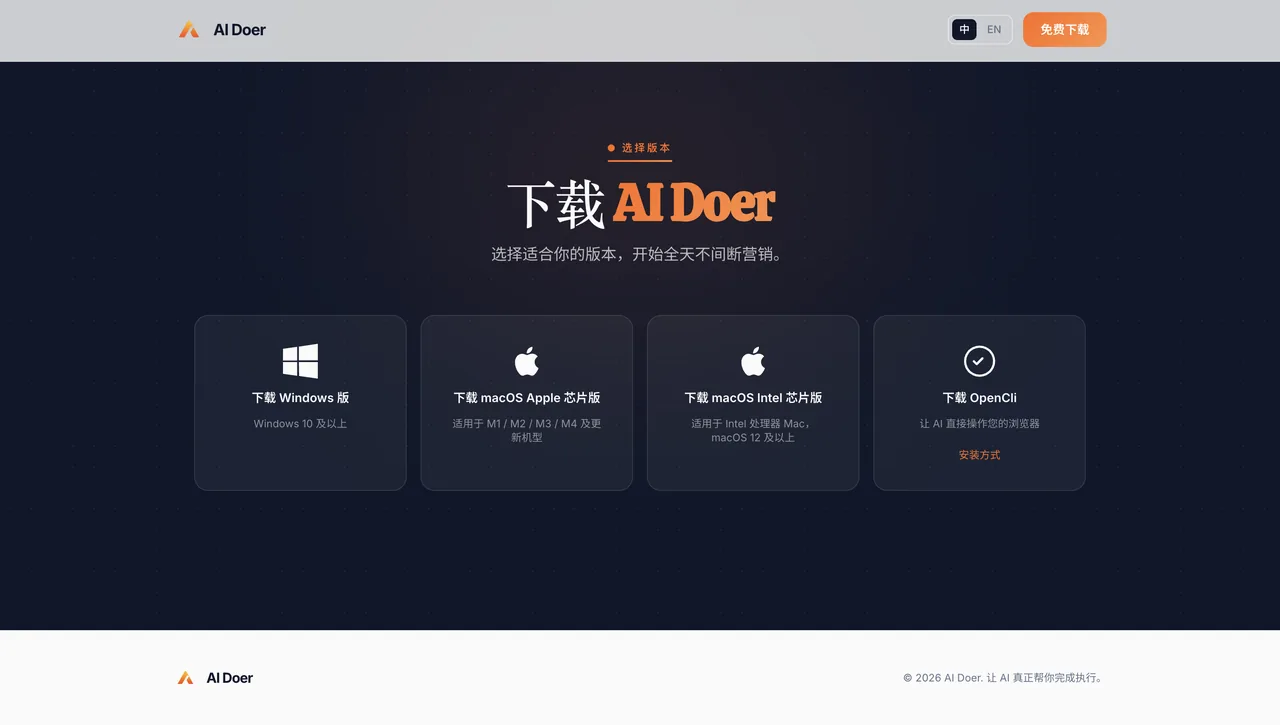
- Go to the official AI Doer website, then download and install the version for your computer's operating system:
- Download URL: https://aidoer.ai/download
- Windows;
- macOS for Apple silicon;
- macOS for Intel processors.
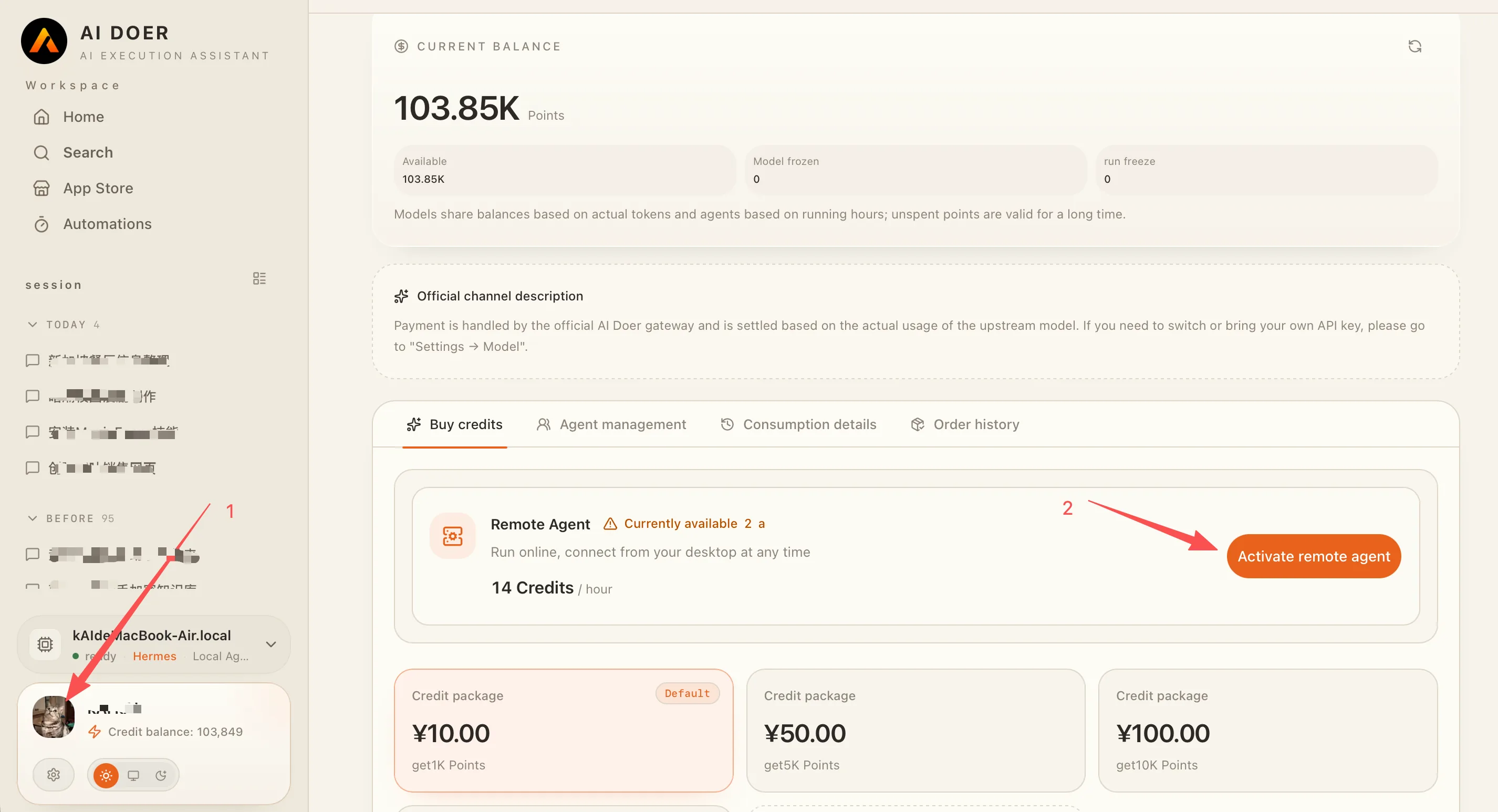
After downloading and installing AI Doer, Windows users need to purchase and enable a Remote Agent. Mac users can choose either a Local Agent or a Remote Agent as needed.
Purchase and enable a Remote Agent:
- Click your profile picture in the lower-left corner;
- Click "Enable Remote Agent," then follow the on-screen instructions to complete the purchase and enable it.
AI Doer supports multiple AI models. Different models each have advantages in performance, response speed, and usage cost: Chinese models are generally more cost-effective, while American models perform better on complex tasks and in overall performance. Users can choose flexibly based on the specific task, budget, and desired results.
- Download the Chrome browser from https://www.google.com/intl/zh-CN/chrome/
- At the same time, install the OpenCLI extension in the Chrome browser. Once it is installed, AI Doer can operate the browser, access social media, and perform related work according to task requirements.
- Option 1: Manual installation
- Click the button above to download the OpenCLI installation package (a .zip file)
- Extract the downloaded .zip file to any folder
- Open Chrome, enter
chrome://extensions/in the address bar, and press Enter - Turn on the "Developer mode" switch in the upper-right corner
- Click "Load unpacked" in the upper-left corner
- Select the folder extracted in Step 2
- Once installation is complete, AI Doer can operate the browser through OpenCLI
- Option 2: Download from the Chrome Web Store
- Visit OpenCLI in the Chrome Web Store and click "OpenCLI"
- Click "Add to Chrome"
- Once installation is complete, AI Doer can operate the browser through OpenCLI
2. Prepare Your Website Materials
Before you begin, it is recommended that you prepare:
- Your company or website name;
- A company introduction;
- An introduction to your products or services;
- Contact information;
- Your logo and company images;
- Your preferred colors and design style;
- Chinese and English materials.
It is fine if your materials are not yet complete. You can generate the website first and revise it later through the chat.
Do not let AI Doer fabricate client cases, partner brands, company data, customer reviews, or awards.
3. Generate the Website
You can choose either of the following two methods.
Method 1: Describe Your Website Requirements Directly
If you do not have a reference website, tell AI Doer directly about the website's sections, content, and style. Send:
Please create an official website for Qinghe Space Design.
The company provides residential design, office design, and old-home renovation services for clients in China and overseas.
The website should include:
Home
Services
Portfolio
About Us
Blog
Contact
Use a clean, modern design with off-white, dark gray, and a small amount of green. It only needs to support common desktop browsers.
Provide both Chinese and English versions. Use a text-only layout for the blog, with a blog listing page and article pages. Do not use blog cover images.
Please complete basic SEO setup. Store images, fonts, and icons intended for long-term use within the project; do not use temporary links that may expire.
Do not fabricate company data, customer reviews, partner brands, or real client projects.
Please complete the website directly and provide a temporary preview URL that I can open in a browser on my computer.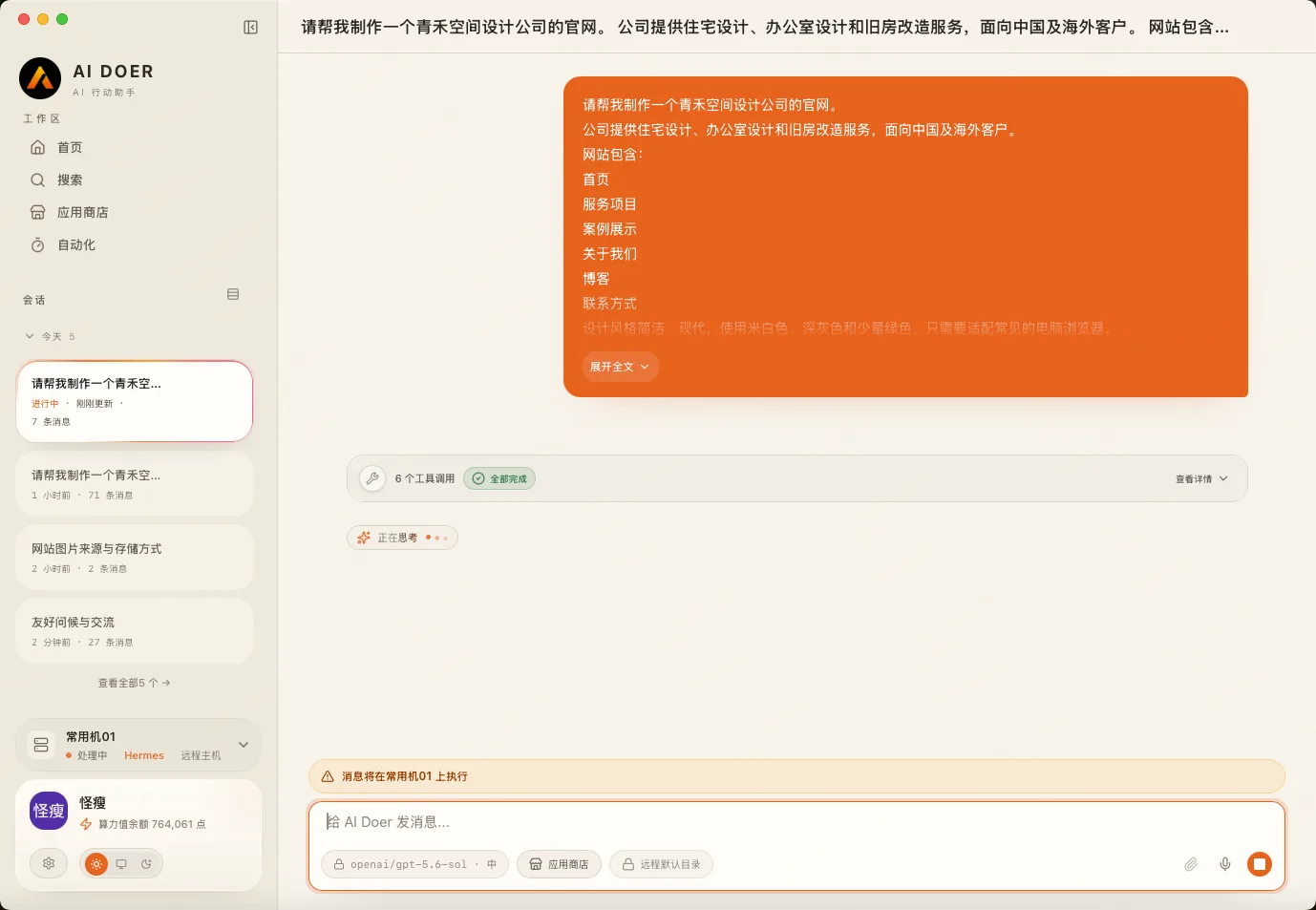
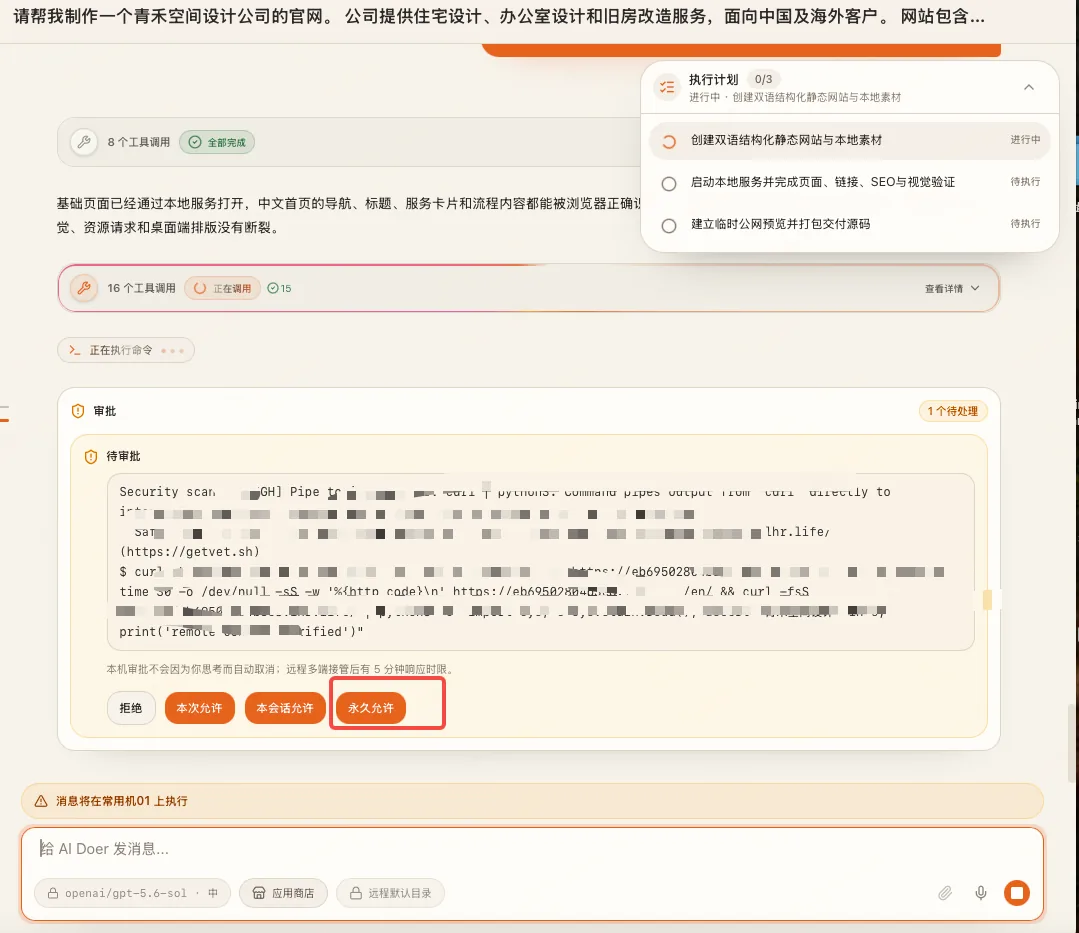
If a manual confirmation or approval prompt appears, review the requested action and permission scope before approving it. Prefer one-time or least-privilege authorization; use persistent authorization only when you understand and need the ongoing access.
Method 2: Use a Website You Like as a Reference
If you find a website you like, you can give its URL or screenshots to AI Doer as a reference.
Please use the layout and design style of the following website as a reference to create a new website for Qinghe Space Design:

[Enter the reference website URL or upload website screenshots]

You may refer to its page layout, navigation structure, color palette, and content arrangement, but do not copy its text, images, logo, brand assets, or source code.

The new website should use my own company information and include Home, Services, Portfolio, About Us, a text-only Blog, and Contact. It should provide both Chinese and English versions and only needs to support common desktop browsers.

Please complete the website directly and provide a temporary preview URL that I can open in a browser on my computer.
AI Doer can draw inspiration from the reference website's design direction, but the content and assets created should belong to you.
4. Open the Website Preview
Because AI Doer is installed on a cloud machine, you need a temporary URL that can be opened externally to preview the website.
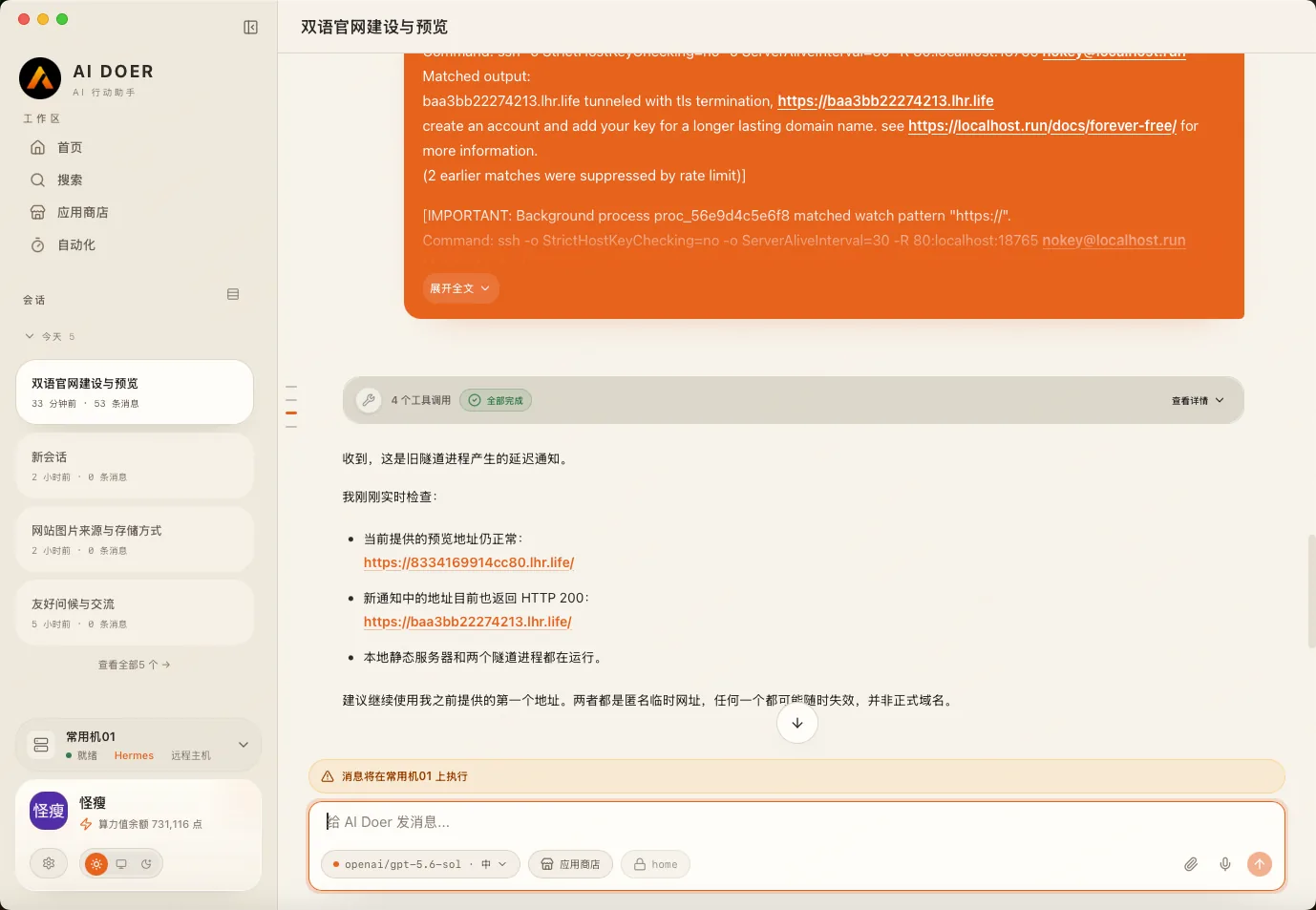
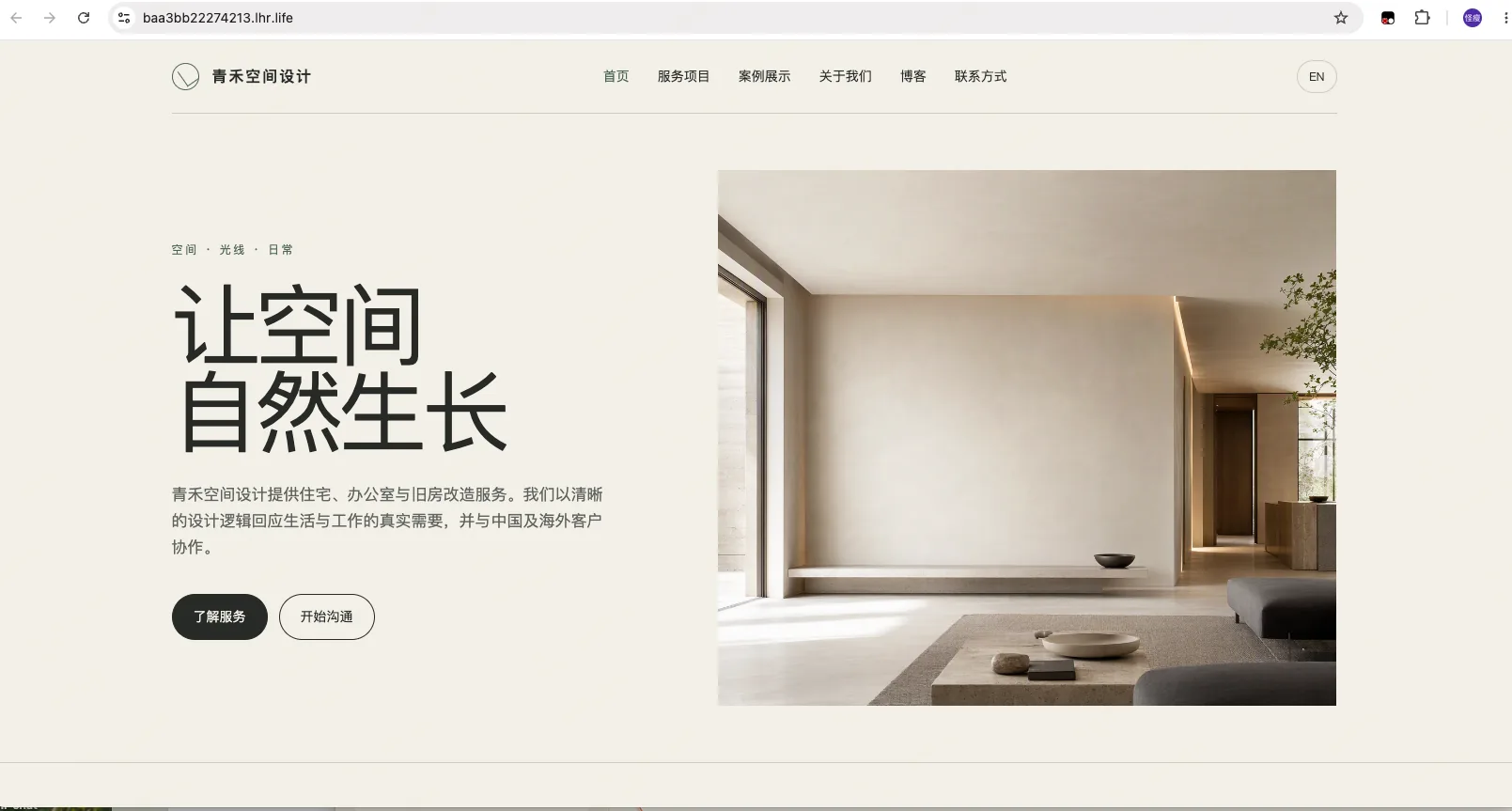
This URL is only for viewing the website as it is being created. The temporary URL may stop working after the cloud machine or preview service is shut down, and it may change when the service is restarted.
After opening the preview, check:
- The company name, introduction, and contact information;
- The home page and every section;
- Switching between Chinese and English;
- The blog listing and articles;
- Navigation, buttons, and images;
- Whether any fabricated content appears.
What to Do If You See "This Site Can't Be Reached"
If you see a page like the one below:
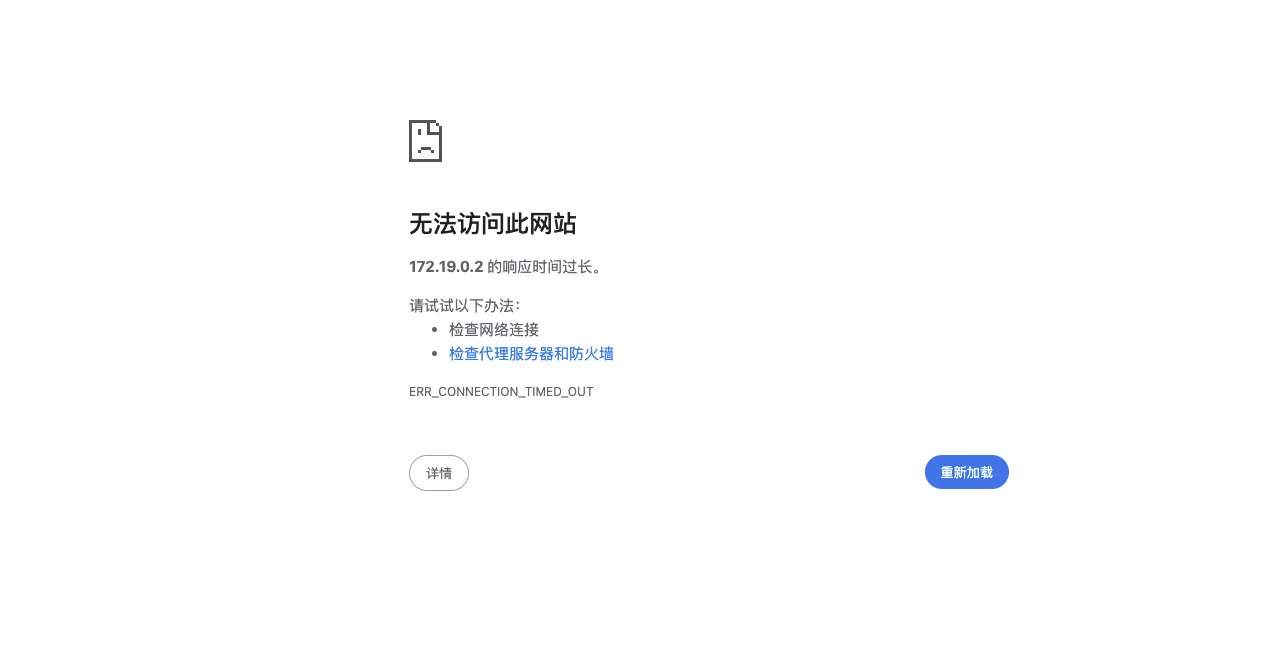
It means the address provided by AI Doer cannot be accessed from your computer. Send the screenshot to AI Doer, then say:
This preview URL cannot be opened. The browser displays "This site can't be reached" and "ERR_CONNECTION_TIMED_OUT."

Please check whether the website service is running, generate a new temporary HTTPS preview URL that can be opened directly in a browser on my computer, and verify that it is accessible before sending it to me.
5. Revise the Website Through the Chat
You do not need to edit the code yourself if you are dissatisfied with something. Just tell AI Doer directly.
Revise the Home Page
There is too much content in the first screen of the home page. Please keep only the company name, a one-sentence introduction, and the "View Services" button.Change the Colors
The current colors are too dark. Please add more white space, use green only as an accent, and do not change anything else.Revise the Blog
Please change the blog to a text-only layout and remove all blog cover images. The blog listing should display only the title, publication date, and summary.Add a Blog Article
Please add an English blog article titled "5 Questions to Consider Before Renovating an Office."

Use a text-only layout for the article. It does not need a cover image. Do not fabricate statistics or client cases.
Complete the Final Revisions
Please check the entire website and fix typos, nonfunctional buttons, incorrect links, resource-loading failures, and problems with switching between Chinese and English.

When finished, please update the temporary preview URL so I can review the final result.
6. Handle Website Images and Assets
Images, fonts, and icons used on the live website should be stored in the website project and deployed with the website, so the website's display is not affected if their original URLs stop working.
Send:
Please check the images, fonts, and icons used by the website.

Store resources needed by the website over the long term within the project, and do not reference temporary links that may expire. Please use materials that I provide or have the legal right to use. Do not present images found online as the company's real client projects.
7. Deploy to Cloudflare
After confirming the preview, have AI Doer complete the deployment through Cloudflare's official MCP and OAuth. Send the following prompt to AI Doer, then follow the instructions step by step.
The website has been reviewed and is complete.
Please connect to my Cloudflare account through Cloudflare's official MCP, and use OAuth to open Cloudflare's official authorization page in a user-visible foreground browser.
On the authorization page, grant only the minimum permissions required to create and deploy the new Cloudflare Pages project. I will personally review the scope, sign in, and click the final authorization button; do not confirm the authorization on my behalf.
After authorization succeeds, please automatically complete the following operations:
1) Verify that the OAuth callback, MCP connection, and Cloudflare Pages write permissions have actually taken effect;
2) Query the existing Pages projects in the account. Do not modify, overwrite, or delete any existing project;
3) Create a new Pages project with a short, lowercase English name that is not already in use;
4) Deploy the completed website to this new project;
5) After obtaining the official pages.dev address, replace the placeholder domain in the website with the official address and redeploy;
6) Wait until the production deployment status explicitly shows success;
7) Open the official URL and thoroughly check the website's main pages, features, resource loading, responsive display, and basic SEO configuration, confirming that the website can be accessed and used normally on the public internet.
If OAuth redirects to a local 127.0.0.1 address that cannot be opened, read the complete callback address and complete authorization through a callback-submission method supported by Hermes. Do not repeatedly ask me to sign in again because of this.
Only after every public-internet check has passed may you explicitly tell me that the website has been built and can be used normally, and send me the official Cloudflare Pages URL.
You must use Cloudflare's official MCP and an official Pages deployment. Do not present a temporary tunnel, local preview, or anonymous deployment as an official launch. Do not expose the OAuth link, authorization code, access token, or any other credentials.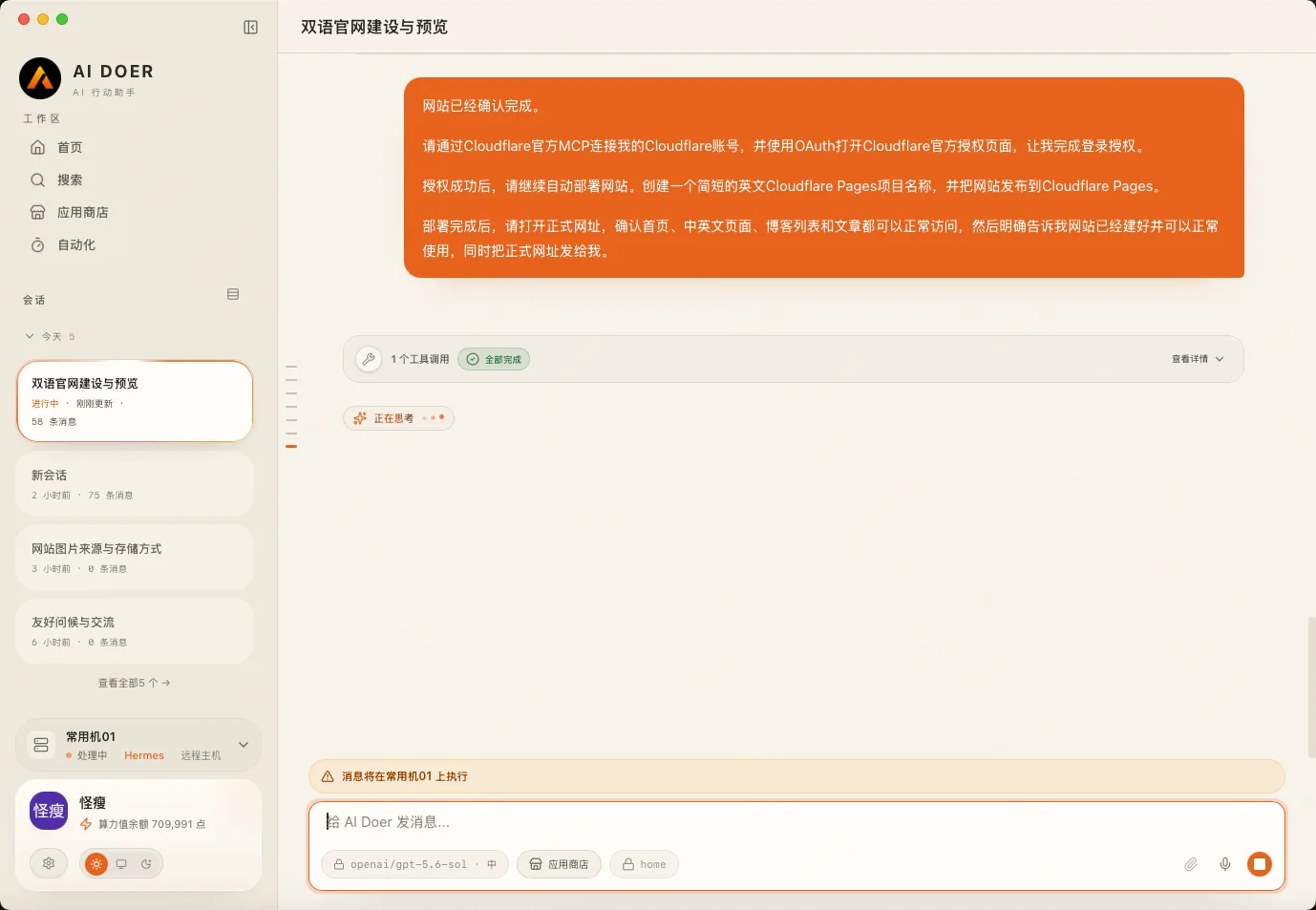
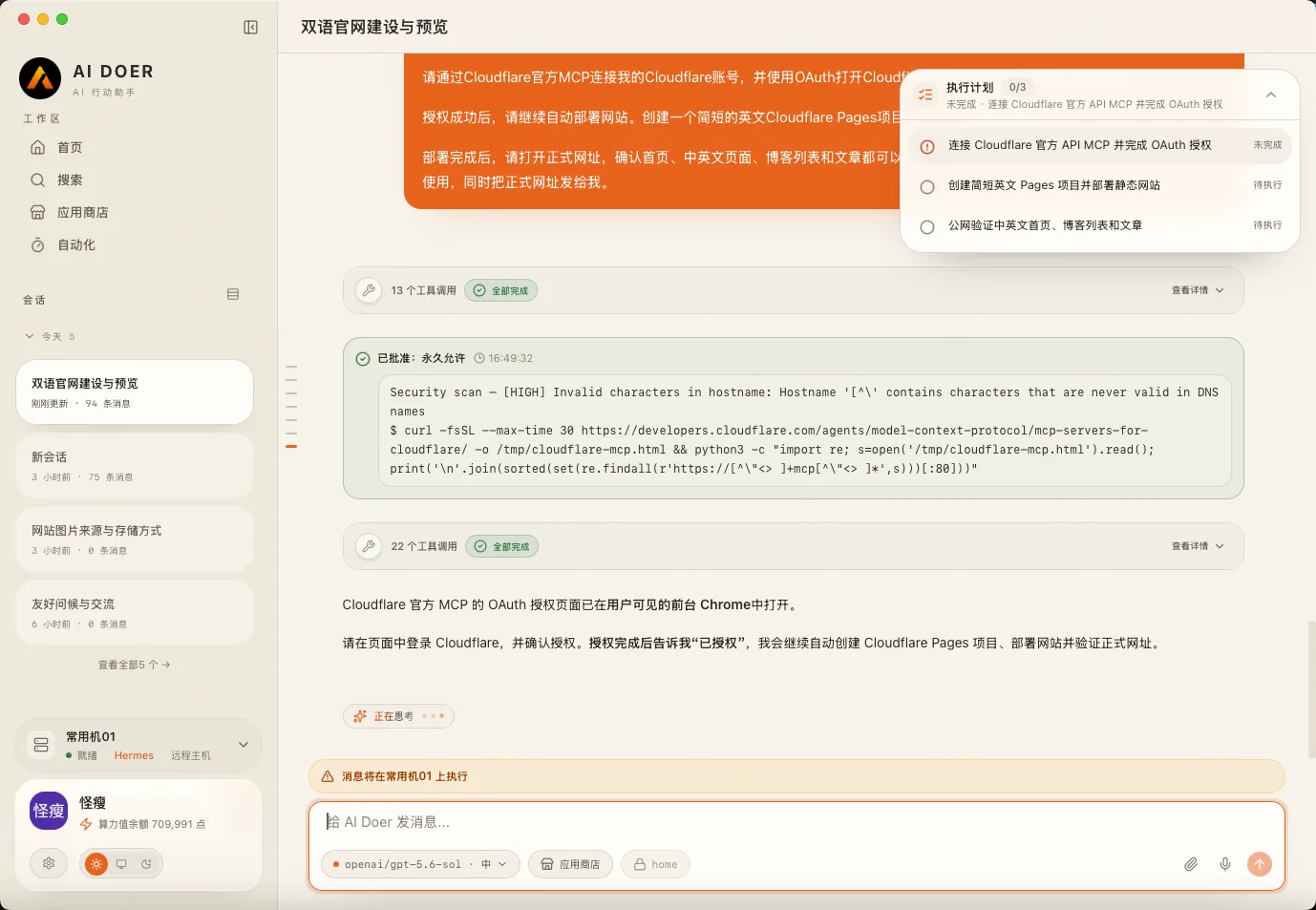
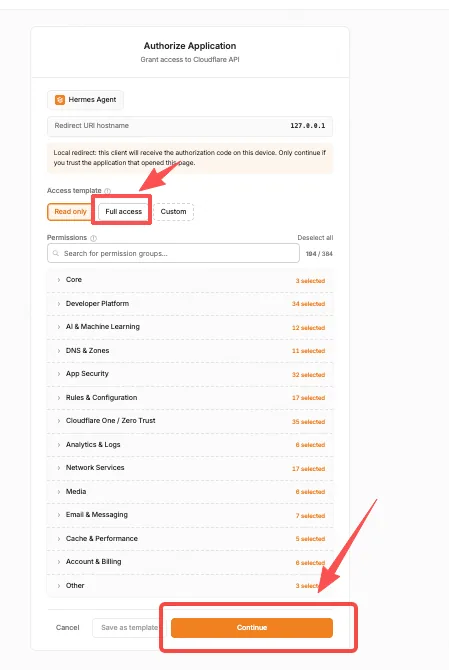
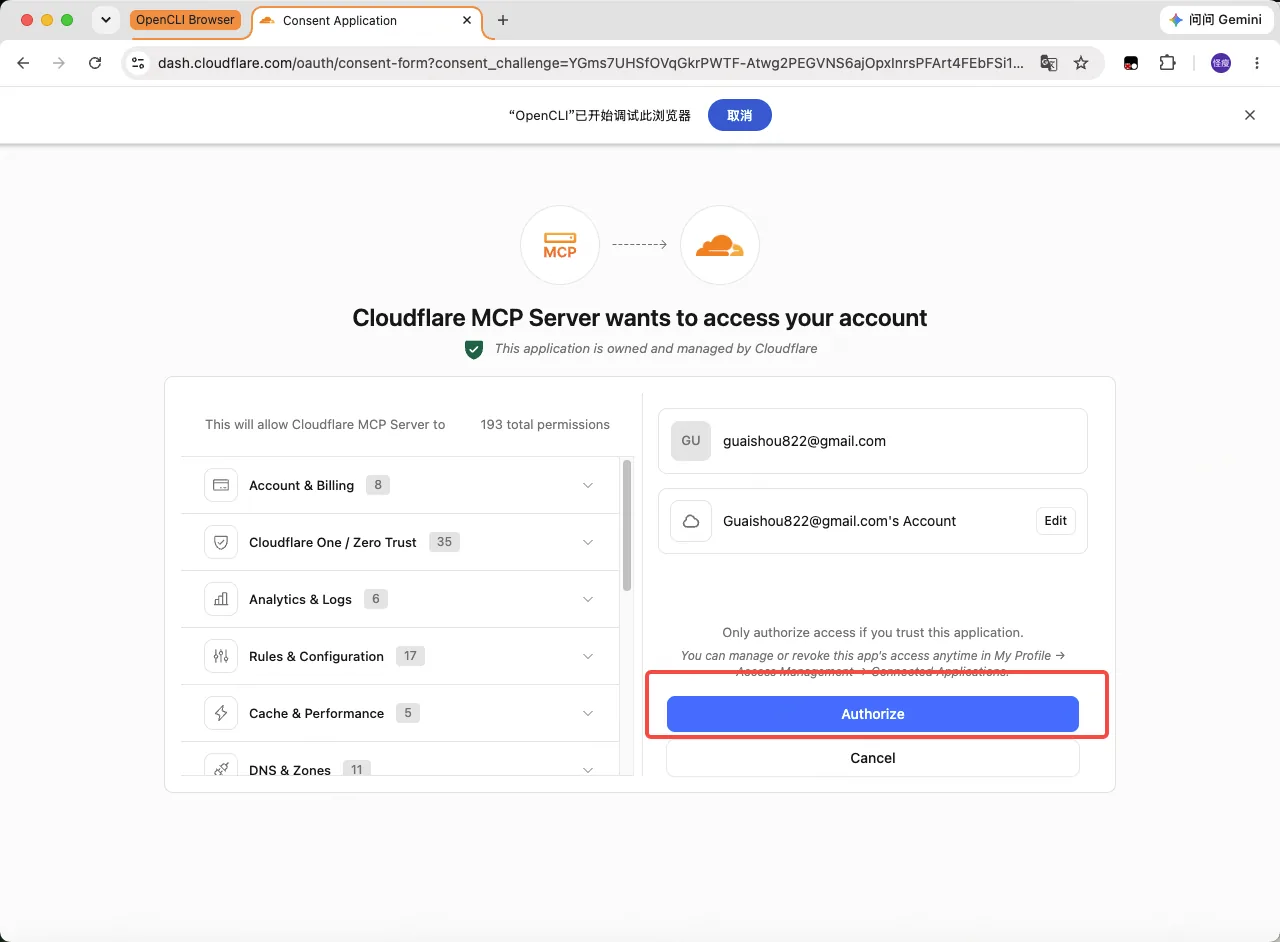
After AI Doer opens the Cloudflare authorization page:
- Sign in to your own Cloudflare account;
- Review the requested scope and grant only the minimum permissions required for Cloudflare Pages deployment;
- Click the final authorization button;
- Return to the AI Doer chat box and reply:
I have clicked the authorization button. Please continue to verify the authorization status and complete the deployment."This Site Can't Be Reached" Appears After Authorization
After you click to authorize, the browser may redirect to 127.0.0.1 and display “This site can't be reached” and “ERR_CONNECTION_TIMED_OUT.”
You do not need to sign in repeatedly. Return to the AI Doer chat box and send:
I clicked the Cloudflare authorization button, but after the browser redirected to 127.0.0.1, it displayed "This site can't be reached."

Please read the complete callback address, complete authorization through a callback-submission method supported by Hermes, and continue the deployment after verifying that the OAuth and MCP connections have succeeded.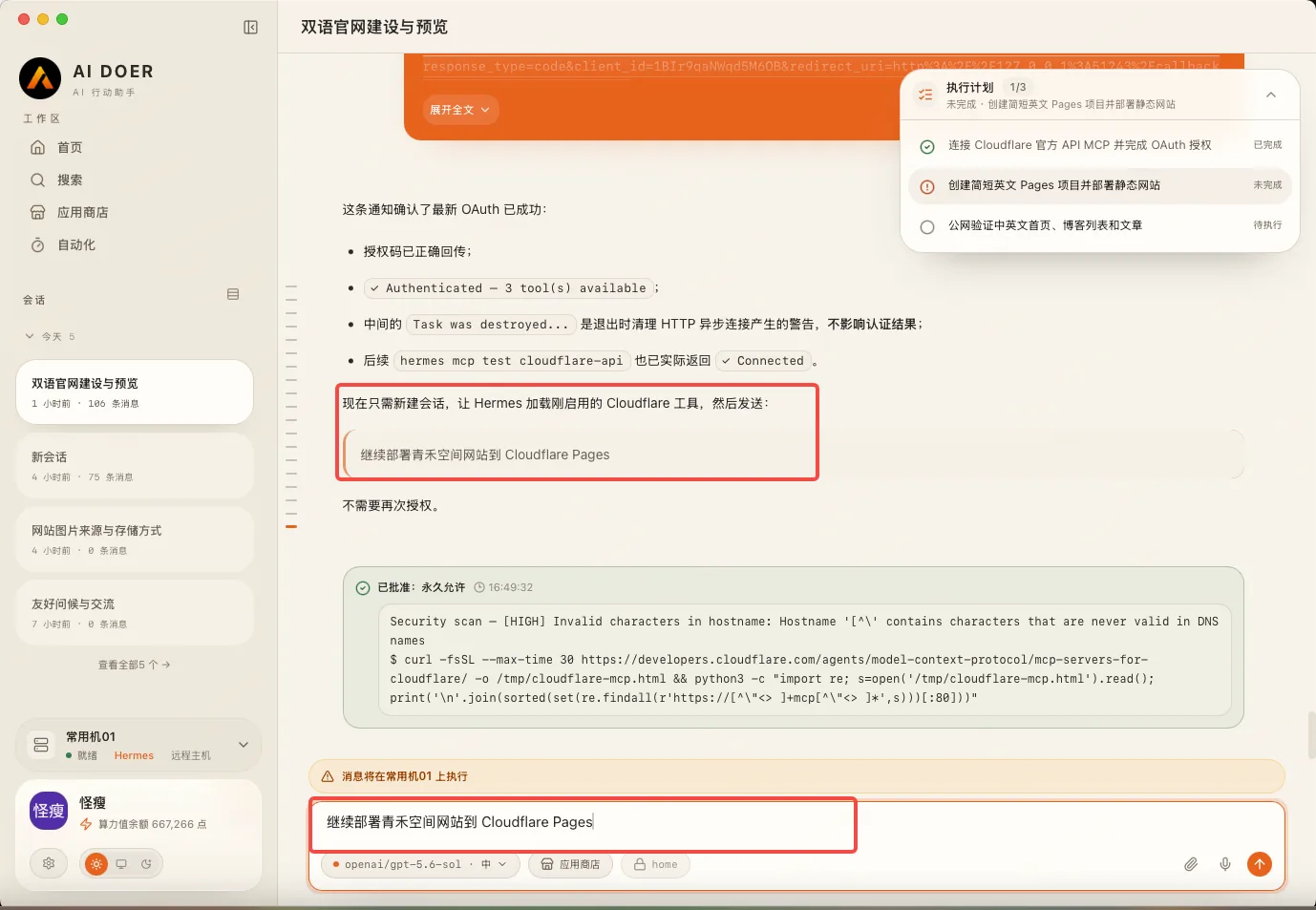
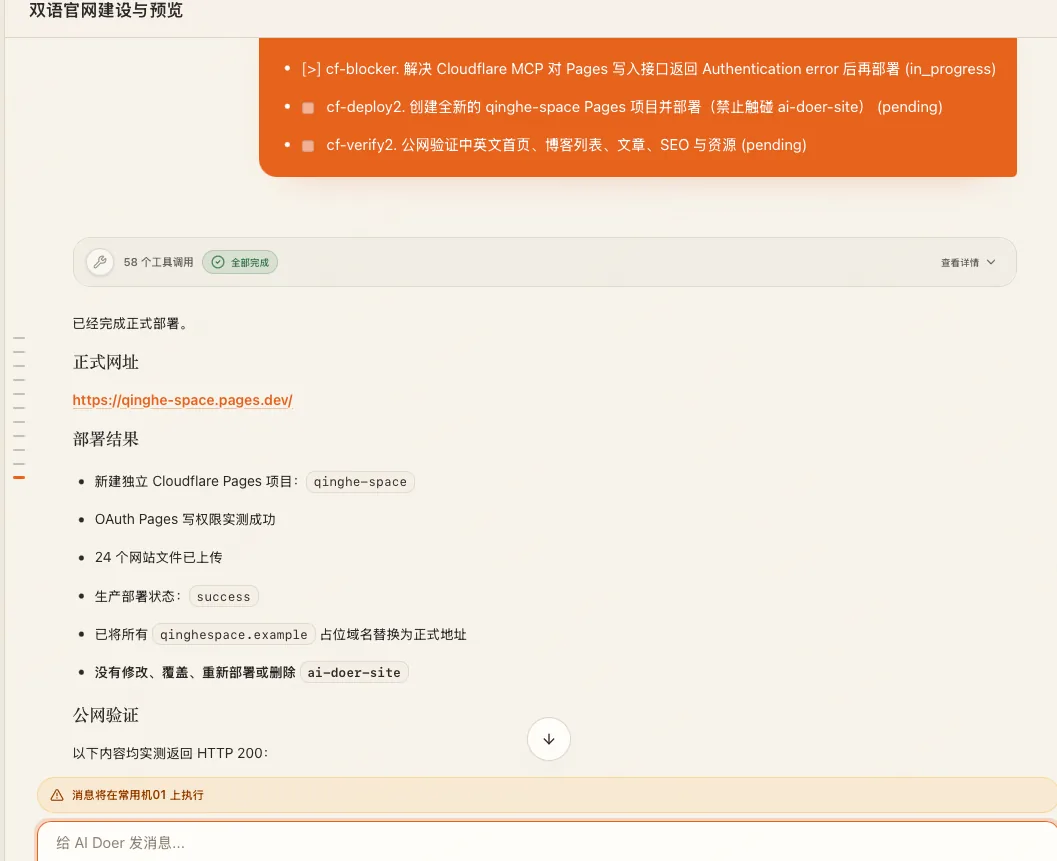
After AI Doer verifies that authorization has succeeded, it will continue by creating a Cloudflare Pages project and deploying the website.
Confirm That the Website Is Officially Live
After deployment is complete, AI Doer will provide an official URL similar to the following:
https://qinghe-space.pages.dev/
Open this URL. If the website's main pages, Chinese and English content, and blog all work normally, it means:
The website has been completed and officially launched, and it is ready to use.
You can send this URL directly to customers or include it on social media and in promotional materials. After AI Doer or the cloud machine is shut down, the official website on Cloudflare will remain accessible.
8. Save the Website Source Code
After the website goes live, download a complete copy of the source code as a backup.
Please package the website's complete source code as a ZIP file and make it available for me to download.

The archive must include all website pages, blog articles, images, fonts, icons, and project maintenance instructions. Please verify that the files are complete before sending it to me.
It is recommended that you save the source ZIP both on your computer and in cloud storage. Even if you later switch cloud machines or cannot find the original chat, you can give the source code back to AI Doer and continue making changes.
9. Modify the Website Later
When you need to add articles, replace images, or revise content in the future, say directly in the AI Doer chat box:
Please continue maintaining the website I created previously and make the following changes:

[Enter the changes here]

After completing the changes, please check the website and automatically update it at the original live URL.
For example:
Please continue maintaining the website I created previously and make the following changes:
- Change the contact phone number to 13900000000;
- Add an English blog article;
- Remove the "Old-Home Renovation" service;
- Do not change anything else.
After completing the changes, please check the website and automatically update it at the original live URL.
AI Doer will update the original website, and the official URL will remain unchanged.
The Original Project Cannot Be Found in a New Chat
If AI Doer cannot find the previous website, upload the source ZIP you saved earlier, then send:
The attachment contains the complete source code of my previous website.

Please continue maintaining this website and make the following changes:

[Enter the changes here]

The original website URL is:
[Enter the original official URL]

After completing the changes, please check the website and update it at the original live URL. Do not create a new website or change the original official URL.
If the Cloudflare authorization has expired, simply follow the prompts to complete the official OAuth authorization again.
10. Purchase Your Own Domain
Once you have a pages.dev URL, the website has been built and can be used normally. Purchasing your own domain is not required to launch the website.
Your own domain is mainly useful for:
- Making the URL easier to remember;
- Displaying your business or brand name;
- Using it on business cards, advertisements, and promotional materials;
- Making the website look more professional.
For example, you can change: qinghe-design.pages.dev to qinghedesign.com
Where You Can Buy a Domain
If the website is intended for overseas users, you can purchase a domain from the following platforms:
- BytePlus
Website: https://www.byteplus.com/
BytePlus is the overseas brand of Volcano Engine. After signing in, go to its domain service to search for and purchase the domain you need.
- Cloudflare Registrar
Website: https://www.cloudflare.com/products/registrar/
If the website has already been deployed on Cloudflare Pages, buying the domain directly from Cloudflare will make it more convenient to connect the domain to the website later.
- Namecheap
Website: https://www.namecheap.com/
Namecheap is a common international domain-registration platform that provides domain search, purchase, renewal, and DNS management.
- GoDaddy
Website: https://www.godaddy.com/
GoDaddy supports many countries and regions and also provides domain-registration and management services.
After signing in, go to the domain service, search for the domain you want, and complete the purchase. When purchasing, pay attention to the first-year price and the annual renewal price for subsequent years.
Domain payment, account verification, and similar steps must be confirmed by the user personally.
11. Connect Your Own Domain
After completing the purchase, give the domain to AI Doer:
I have purchased the following domain from BytePlus:

[Enter the domain]

Please connect it to my Cloudflare Pages website that is already live.

Please complete the Cloudflare configuration through the already-authorized official Cloudflare MCP. Do not create a new Pages project or change the existing website content.

If the DNS servers or DNS records still need to be changed in BytePlus, please open the corresponding page and assist me in completing the changes. I will personally handle sign-in, verification codes, and final confirmation.

After configuration is complete, please check whether the new domain and HTTPS are accessible normally, and clearly tell me the connection result.
After the domain is connected successfully, the original pages.dev address will usually remain usable, and the new branded domain will open the same website.
12. Common Situations
AI Doer Sends Only a Preview URL That Cannot Be Opened
This preview URL cannot be opened from my computer.

Please check whether the website is running, generate a new temporary HTTPS preview URL that can be accessed externally, and verify that it opens normally before sending it to me.
AI Doer Sends Only Code Without Opening the Website
Please run the website directly and provide a temporary preview URL that I can open in a browser on my computer. Do not send only the code.Cloudflare Authorization or Deployment Is Interrupted
Please check the connection status of Cloudflare's official MCP. If the authorization has expired, reopen the official OAuth authorization page. Continue deploying the website after authorization is complete.A Different Website URL Appears After an Update
Do not create a new Cloudflare Pages project. Please deploy these changes to the original project and retain the original official URL.The Live Website Displays a Blank Page
The live website on Cloudflare displays a blank page after opening.

Please check the website files, resource paths, and production errors. After fixing the problems, redeploy to the original Cloudflare Pages project and confirm that the official URL is accessible normally.
13. Complete Workflow
Prepare the website materials
→ Choose either to describe your requirements directly or use another website as a reference
→ AI Doer generates the website
→ View the preview through a temporary public URL
→ Request revisions in the chat box
→ Complete OAuth authorization through Cloudflare's official page
→ AI Doer automatically deploys to Cloudflare Pages
→ Obtain the official pages.dev URL
→ The website is complete and ready to use
→ Download a source code backup
→ Purchase and connect your own branded domain as needed
Throughout the process, the user mainly does three things:
- Describe the desired website in natural language;
- Review the preview and tell AI Doer what needs to be changed;
- Complete a one-time secure authorization on Cloudflare's official page.
AI Doer handles website creation, revisions, and deployment.