
1. What This Guide Helps You Accomplish
In the complete AI Doer growth system:
- GEO operations make you discoverable;
- Social media operations make you visible;
- An independent website makes you understood, trusted, and converted;
- Private domain operations sustain the customer relationship over time.
GEO and social media answer "where do users come from," the independent website answers "where do users learn and convert," and private domain operations answer "once users arrive, how do you keep building trust, complete the conversion, and create long-term value."
This guide helps you use AI Doer's WhatsApp capabilities to receive that traffic: turning scattered inquiries, interactions, and behaviors into a sustainable customer operations loop.
2. Install AI Doer, Chrome, and the OpenCLI Extension
- Visit the AI Doer website and download the version that matches your operating system:
- Download page: https://aidoer.ai/download
- Windows;
- macOS Apple Silicon;
- macOS Intel.
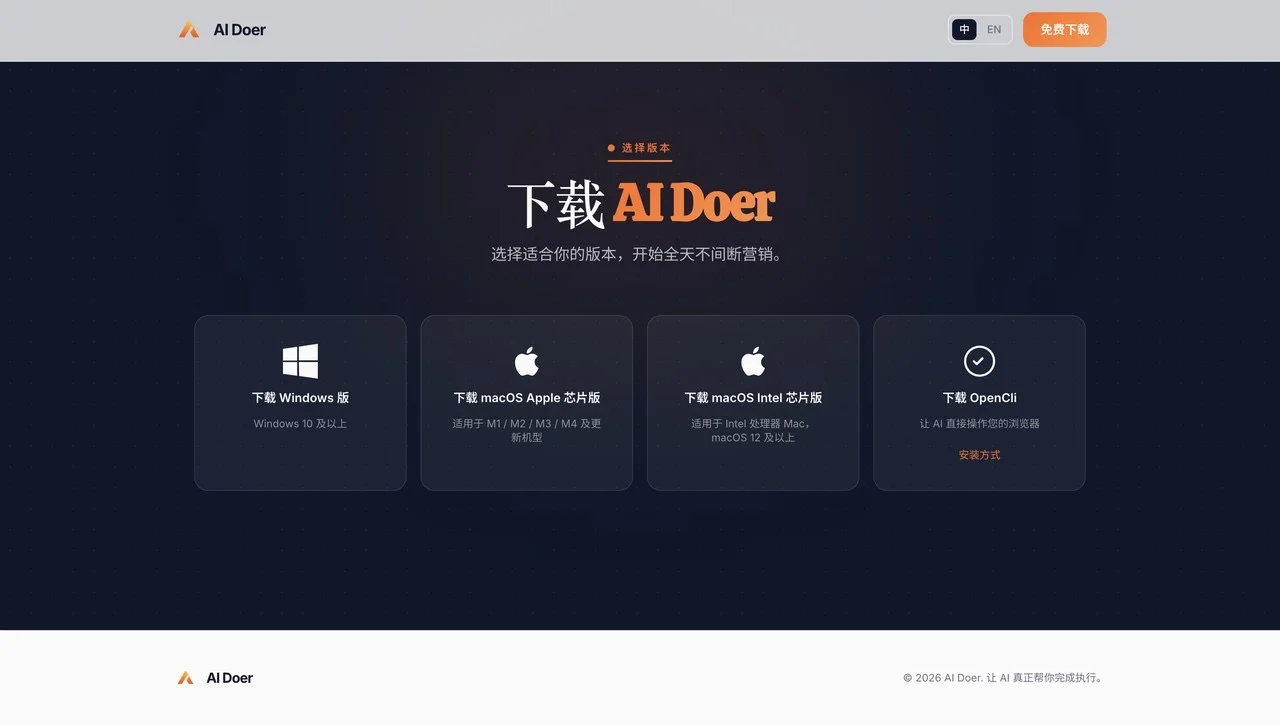
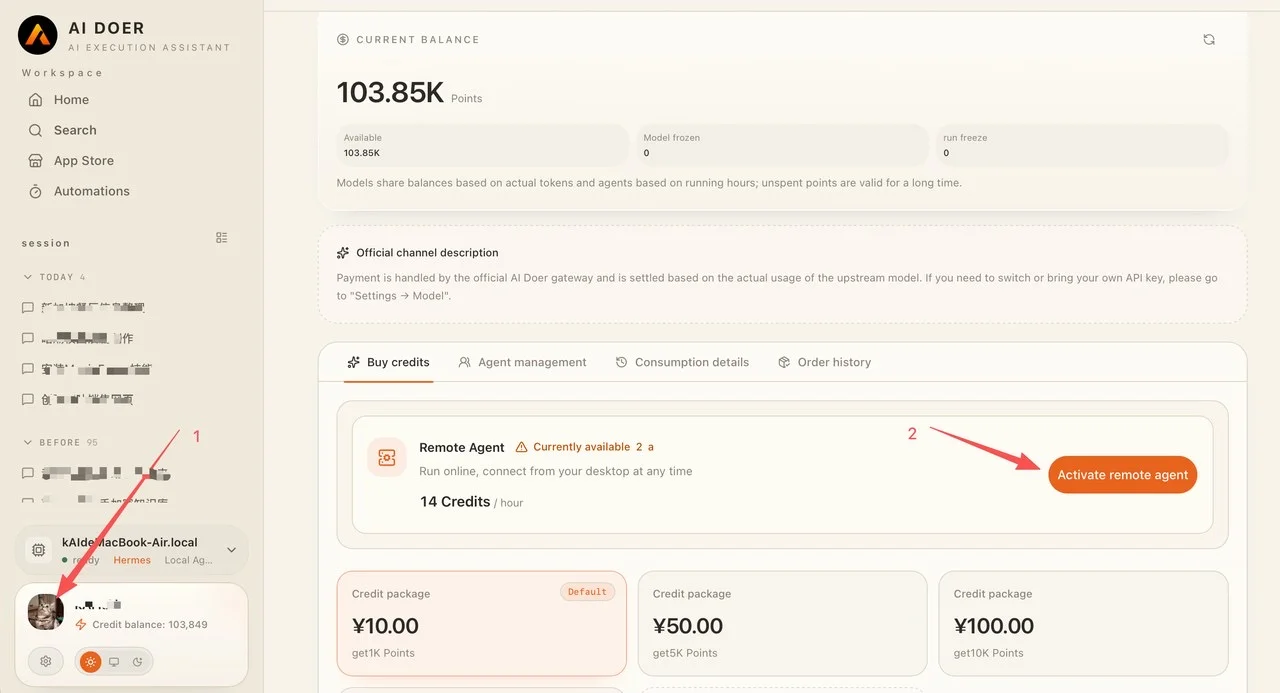
After downloading and installing AI Doer, Windows users need to purchase and enable a remote Agent; Mac users can choose between a local Agent and a remote Agent as needed.
To purchase and enable a remote Agent:
- Click your profile avatar in the lower-left corner;
- Click "Activate remote agent" and follow the on-screen instructions to complete the purchase and activation.
AI Doer supports multiple AI models. Different models have different strengths in performance, response speed, and cost: Chinese models are usually more cost-effective, while US models perform better on complex tasks and overall capability. Choose flexibly based on your specific task, budget, and quality requirements.
- Download the Chrome browser here: https://www.google.com/intl/en/chrome/
- Then install the OpenCLI extension in Chrome. Once it is installed, AI Doer can operate the browser, access social media, and carry out related work according to your task instructions.
- Option 1: Manual installation
- Click the button above to download the OpenCLI installation package (.zip file)
- Unzip the downloaded .zip file into any folder
- Open Chrome, type
chrome://extensions/in the address bar, and press Enter - Turn on the "Developer mode" switch in the upper-right corner
- Click "Load unpacked" in the upper-left corner
- Select the folder you unzipped in step 2
- Installation is complete, and AI Doer can now operate the browser through OpenCLI
- Option 2: Install from the Chrome Web Store
- Visit OpenCLI in the Chrome Web Store and click "OpenCLI"
- Click "Add to Chrome"
- Installation is complete, and AI Doer can now operate the browser through OpenCLI
- Prepare a working WhatsApp account.
3. Reach Out to Customers with the WhatsApp Customer Outreach Assistant
Proactive outreach is the first step of private domain operations: group the customer contacts you have already collected by source and need, then send a targeted, genuinely valuable first message.
3.1 Open the Assistant
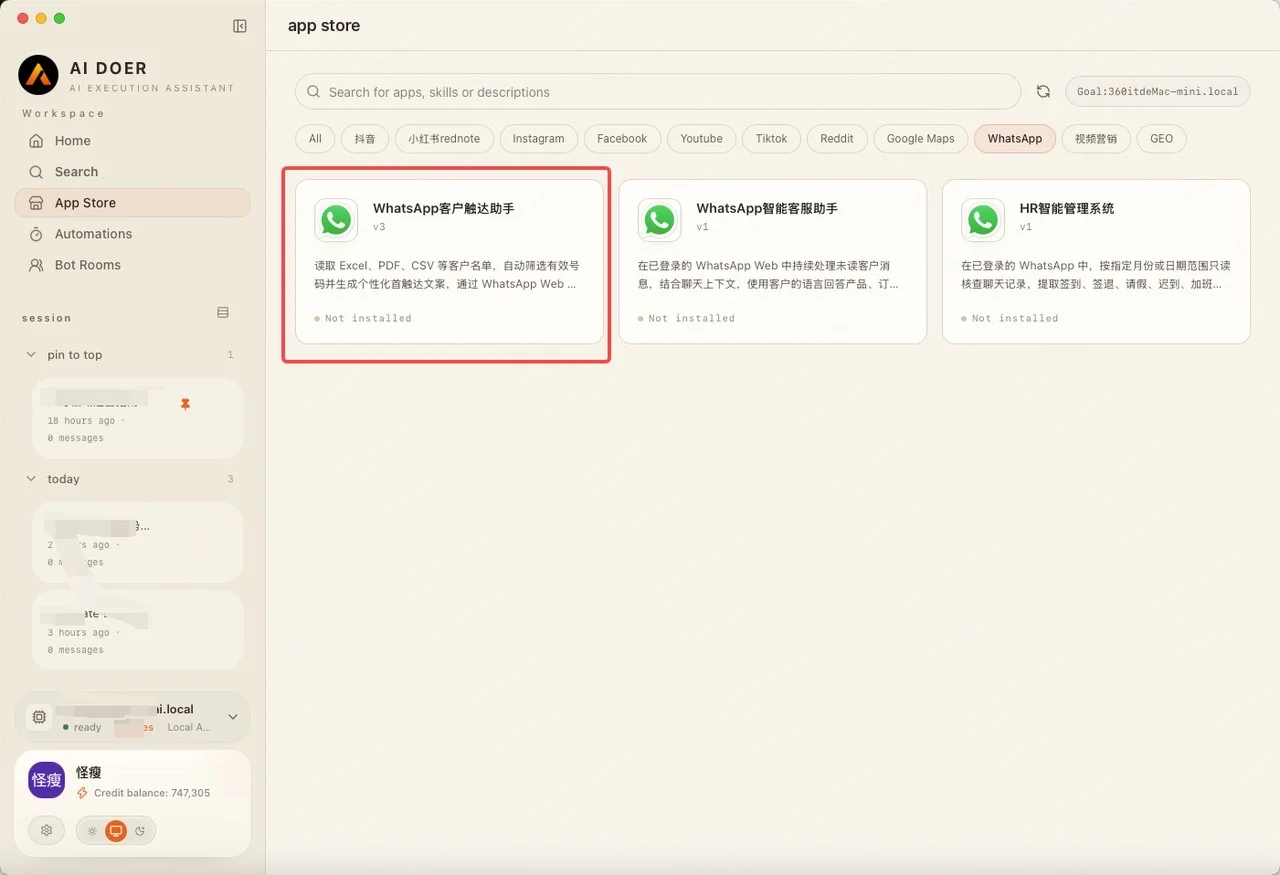
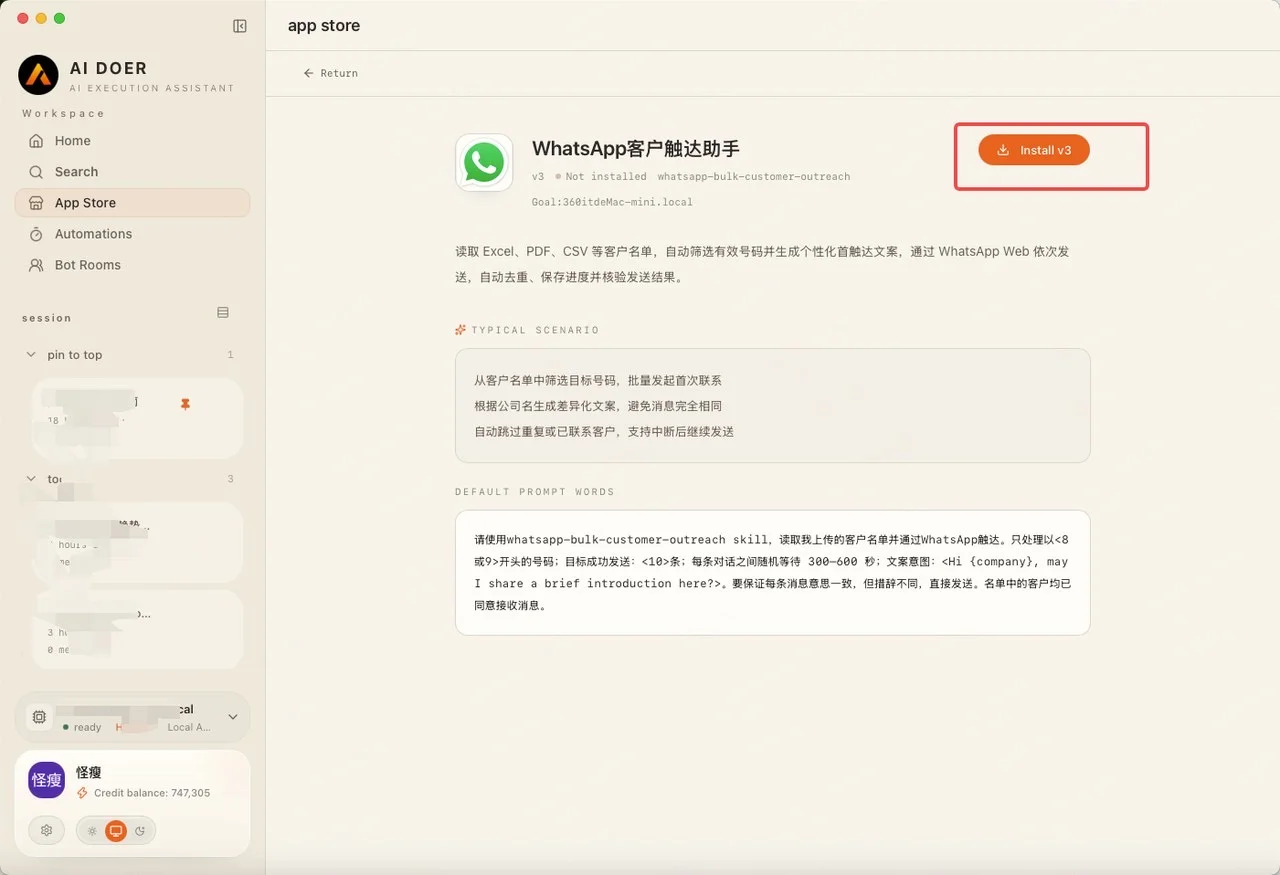
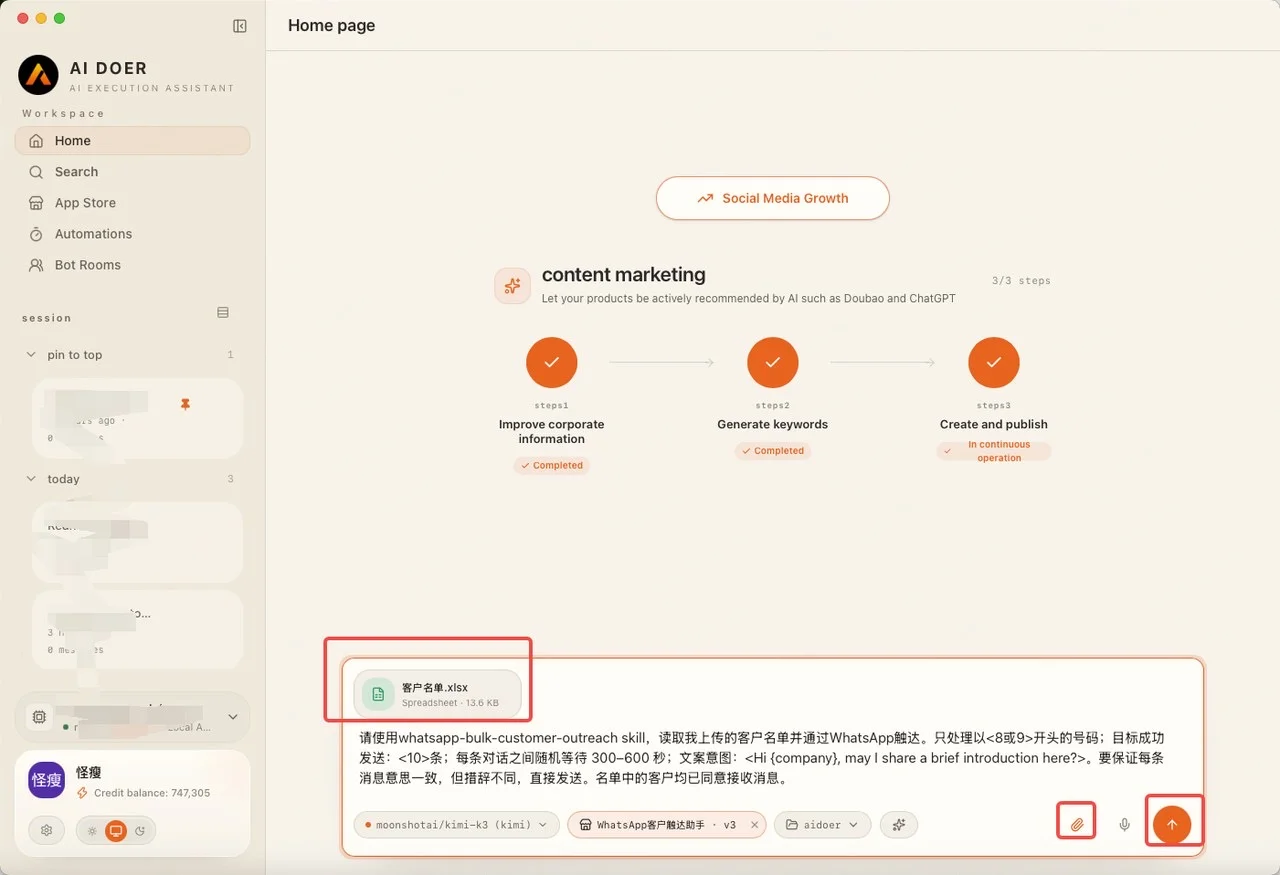
Go to the AI Doer App Store and open the WhatsApp Customer Outreach Assistant. The chat box is automatically filled with the corresponding system prompt. You can also customize the prompt for your own business, upload your customer list spreadsheet, and click send.
3.2 Prepare the Customer List
Prepare a customer list that ideally includes:
- Customer name;
- WhatsApp number (with country or region code);
- Customer source (website, social media, GEO article, trade show, etc.);
- Customer interest (products or services they asked about);
- The language to send in.
You can save it as Excel or CSV, or paste it directly into the chat box.
3.3 Send the Outreach Task
Describe the outreach task to the assistant, for example:
Please use the WhatsApp Customer Outreach Assistant to run outreach based on the customer list I uploaded.
 - Outreach group: [Fill in the group, e.g., New website form leads, August 2026]
 - Language: [Fill in the language]
 - Outreach goal: [Fill in the goal, e.g., follow up on a quote, introduce a new product, invite to a trial]
 - Message style: [Short, polite, personalized]
 - Please generate a personalized first message for each customer based on their name, source, and interest.
The assistant generates a personalized message for each customer on the list and, after you approve the test message, runs the formal outreach.
3.4 Review and Record the Results
After outreach is complete, the assistant summarizes:
- Number of messages sent successfully;
- Failed sends and the reasons;
- Customers who replied;
- High-intent customers that need human follow-up.
Record these results as the basis for subsequent follow-up.
3.5 Notes on Proactive Outreach
- Obtain your list legally and avoid numbers from unclear sources;
- Start with a small batch, then scale up once the results are confirmed;
- State the specific reason for contacting them; do not send pure advertising;
- Provide a way to opt out;
- Do not repeatedly contact the same customer too frequently.
4. Reply to Customer Messages Automatically with the WhatsApp Smart Customer Service Assistant
After outreach, customers will reply. The WhatsApp Smart Customer Service Assistant can handle those inquiries, answer common questions automatically, collect requirement details, and escalate complex issues to a human.
4.1 Open the Assistant
Go to the AI Doer App Store and open the WhatsApp Smart Customer Service Assistant. The chat box is automatically filled with the corresponding system prompt; simply click send.
4.2 Prepare Your Customer Service Materials
To make the answers accurate, organize the following first:
- Product or service introduction;
- Pricing or the factors that affect a quote;
- Delivery methods and timelines;
- Frequently asked questions (FAQ);
- Website or reference links;
- Situations that require human handoff (formal quotes, contracts, complaints, refunds, etc.).
You can upload files, paste the content, or provide your website link.
4.3 Send the Customer Service Task
Describe the customer service task to the assistant, for example:
Please use the WhatsApp Smart Customer Service Assistant to reply to my customer messages.
 - Company materials: [Upload a file or paste the content, or provide the website link]
 - Scope of answers: product introduction, pricing, delivery, frequently asked questions
 - Language: [Fill in the language]
 - For anything uncertain or not covered by the materials, clearly state that human verification is needed; do not guess
 - For formal quotes, contracts, complaints, refunds, or privacy issues, mark the conversation for human handoff
The assistant replies to customers based on the materials you provide, collects requirement details, and escalates anything it cannot confirm.
4.4 Handle Escalated Issues Manually
Issues the assistant marks for human handoff should be handled by you or your team, for example:
- Formal quotes and discount approvals;
- Contract term confirmations;
- Complex technical questions;
- Sensitive issues such as complaints, refunds, and privacy.
Once handled, decide whether the assistant should continue following up.
4.5 Notes on Automated Replies
- Answers must be based on the materials you provide;
- Never invent prices, stock levels, case studies, or delivery times;
- Stop all further outreach immediately when a customer explicitly asks you to;
- Do not let the assistant directly commit to important terms (quotes, contracts, refunds).
5. Daily Operating Rhythm
We recommend running the following sequence every day:
- Check new WhatsApp customer messages and unread conversations;
- Handle the issues the Smart Customer Service Assistant marked for human handoff;
- Follow up manually with high-intent customers;
- Review the customer list and messages planned for outreach that day;
- Run WhatsApp customer outreach in small batches;
- Record the results and the next actions;
- Update customer status (contacted, replied, closed, unsubscribed).
6. Weekly Review
Review at least once a week:
- Which types of outreach messages get higher reply rates;
- Which questions frequently require human handoff;
- Which channels (GEO, social media, website) bring higher-quality customers;
- Whether next week you should adjust your website entry points, your outreach list, or your customer service materials.
Keep optimizing: outreach → reply → conversion → review → optimize again.
7. The Complete Workflow
Prepare the customer list and customer service materials → open the WhatsApp Customer Outreach Assistant and run small-batch proactive outreach → let the WhatsApp Smart Customer Service Assistant handle replies → resolve escalated issues manually → record results and follow up daily → review weekly and keep optimizing → build a long-term private domain operations loop.